
Getting Started with Hiddify
Last updated:
Hiddify is a proxy and VPN client for Android, iOS, Windows, macOS, and Linux. This guide shows you where to download the app, how to find your way around the Home screen, and how to import a subscription and connect for the first time.
Contents
What is Hiddify?
Hiddify connects your device to a proxy using the settings you import. A profile is a saved configuration in the app. If you import a subscription link, one profile can give you access to several proxy servers. You can switch between those servers without adding a new profile each time.
How to Download and Install?
Choose the Hiddify download for your operating system. The download page lists Android APKs, Windows and macOS installers, Linux packages, and the App Store option for iPhone and iPad. Follow the installation steps for your device, then open Hiddify and return here to add your first profile.
Interface Overview
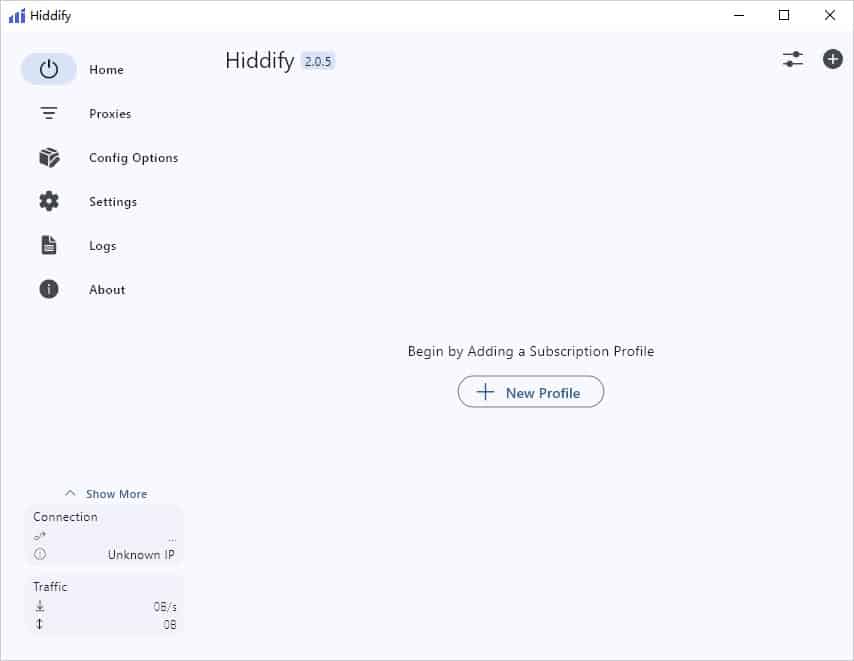
Start with these three controls on the Home screen.
- Add profile (+) opens the options for importing a subscription link or adding a profile manually.
- The profile card shows the active profile. Use it to switch between saved profiles.
- The connect button starts or stops the connection. Open the proxy list to see the servers in your profile.



Servers
Before connecting, have a subscription link from your provider or your own server ready. If your provider gives you an account dashboard, look for its subscription link or copy button.
If you’re still looking for a provider, see Hiddify Servers.
Quick Configuration
Import a subscription and connect
- Copy your subscription link. Copy the full link from your provider or server dashboard.
- Import it into Hiddify. On Home, select + or Add profile, then choose Clipboard. For manual entry, choose Manually, enter a name and the URL, and choose Add.
- Choose your profile and connect. Check that the profile appears on the Home screen, then press the main connect button. On Android or iPhone, approve the VPN connection request if prompted.
- Check the connection. After Hiddify shows Connected, open a website you normally use to check that browsing works.
Switch proxies or refresh your profile
To try a different server, open the proxy list and select another entry. If your provider has changed its server list, use Update profile on your subscription profile.
Fix common setup problems
- “Invalid URL” or “Failed to add profile” — Copy the full subscription link again and check that it begins with
https://. If it still fails, ask your provider for a fresh link. - Stuck on “Connecting” — Check your internet connection, refresh the profile, and try another proxy. On a phone, check for a pending VPN permission prompt.
- “Connected,” but websites won’t load — Disconnect and check whether the same website loads normally. If it does, reconnect with another proxy.